Step 1: Load Data#
CellPick supports two main workflows for loading data:
Option A: Traditional Image + XML Workflow#
This workflow is ideal for users who have microscopy images and pre-computed shape annotations in XML format.
Add Image Channels#
Click “Add Channel” to load one or more microscopy images
Supported formats: TIFF (.tif, .tiff) and CZI (.czi)
If your file contains multiple channels, CellPick will load them all sequentially
For each channel, you’ll be prompted to: - Enter a name for the channel - Select a display color
Load Shapes#
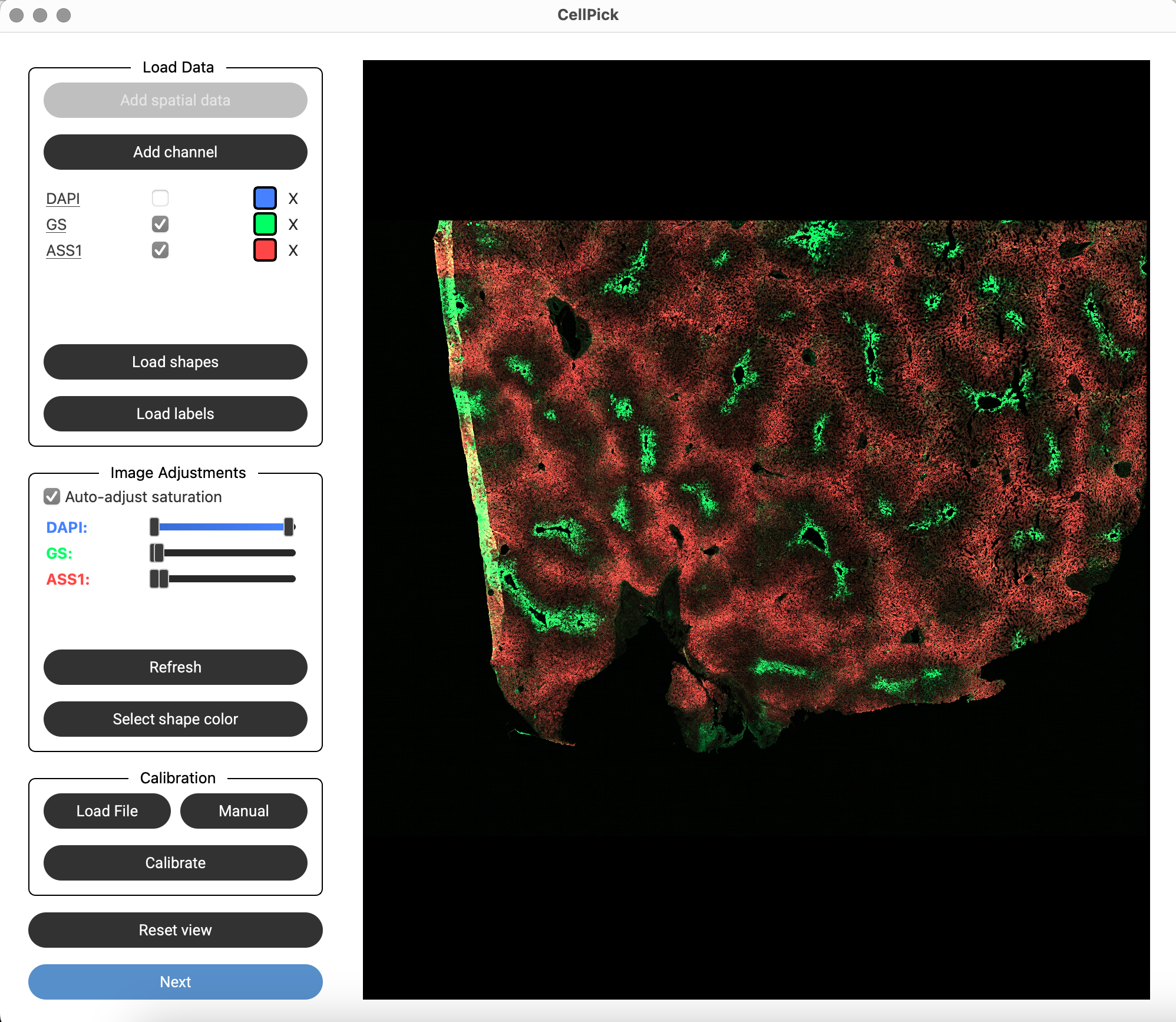
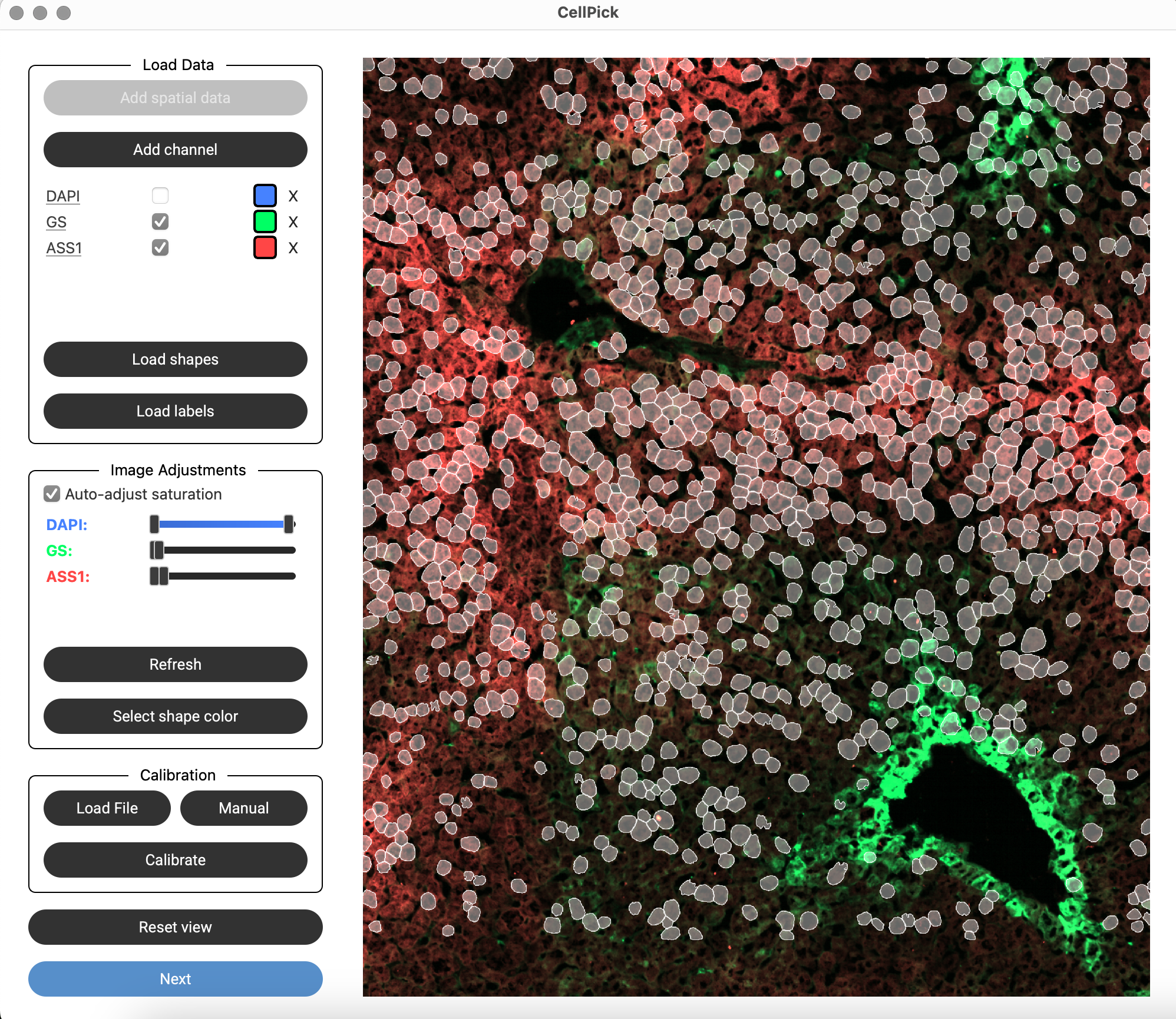
Click “Load Shapes” to import pre-existing shape annotations
This opens two sequential file dialogs: 1. Select the XML file containing shape coordinates 2. Select the calibration/metadata file for alignment
Option B: SpatialData Workflow#
This workflow is for users working with SpatialData (.zarr) stores, which can contain images, segmentation masks, shapes, and annotations in a unified format.
Loading SpatialData#
Click “Add Spatial Data” to load a .zarr store
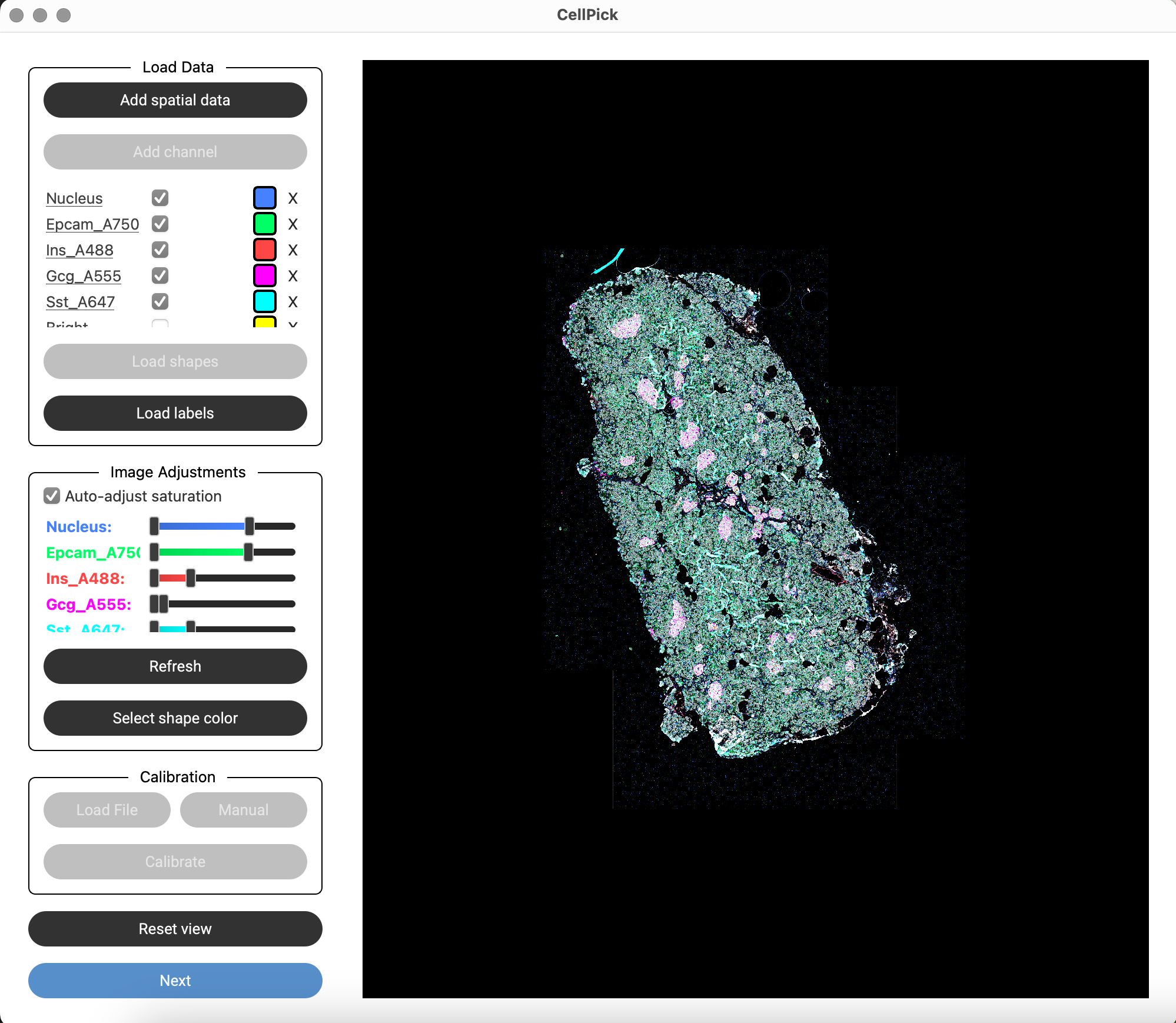
CellPick will detect available elements: - Images: Multi-channel microscopy images - Labels: Segmentation masks (cell boundaries) - Shapes: Pre-computed polygon shapes - Tables: Annotation tables with cell labels
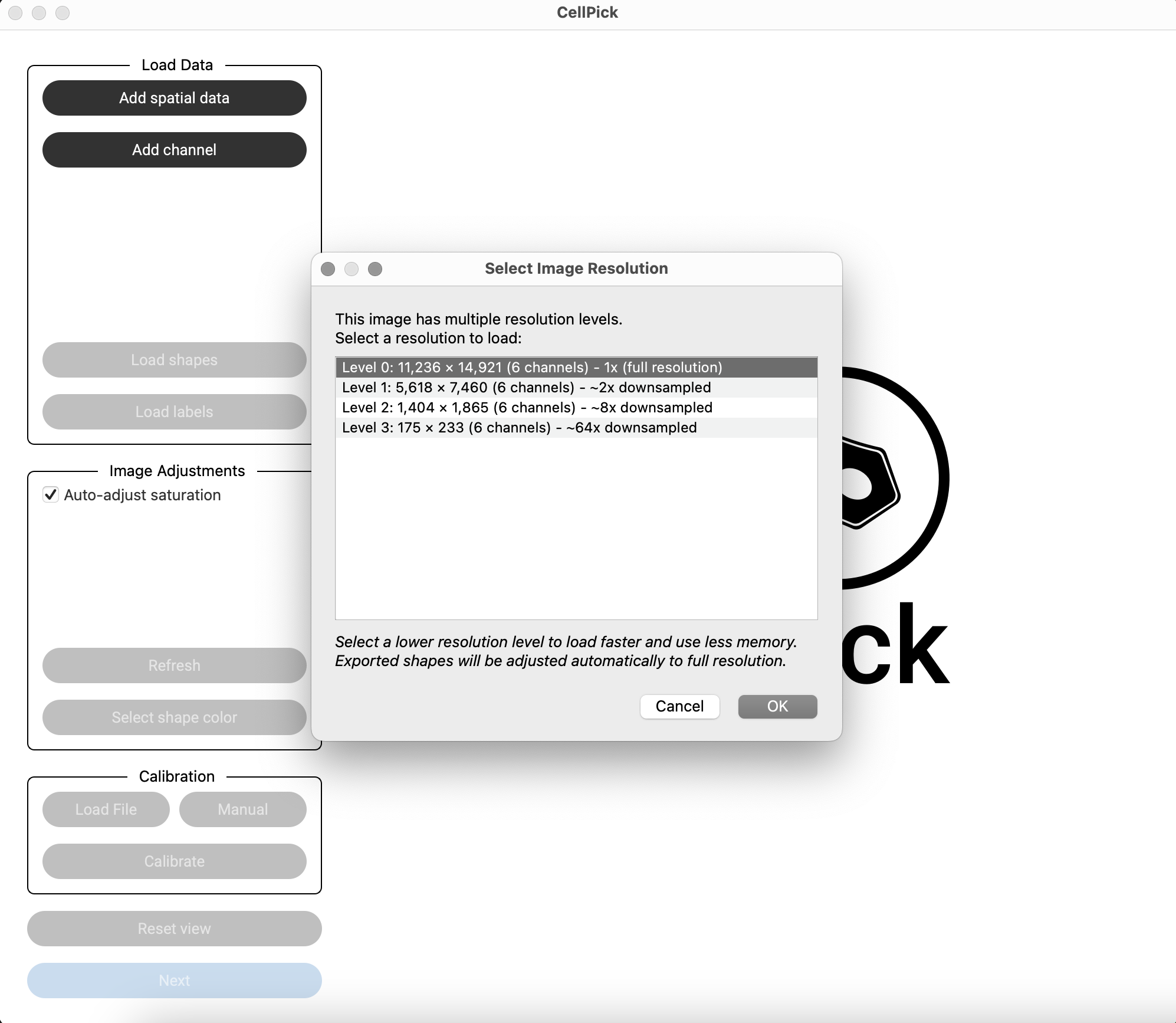
For multi-resolution images, you’ll be prompted to select a resolution level: - Higher resolution = more detail but slower loading - Lower resolution = faster loading, automatic upscaling on export
Note
SpatialData support requires the spatialdata package. See Installation for details.
For multi-resolution images, you’ll be prompted to select a resolution level:
Once loaded, all channels appear in the control panel with per-channel visibility and saturation controls: