
Step 8: Shape Selection#
With active regions defined, you can now select cells using various algorithms.
Selection Methods#
CellPick offers four selection methods (available in the dropdown):
Select k over union of regions: Uses the Gonzalez k-center algorithm to select k cells distributed across all active regions combined. This maximizes spatial coverage while ensuring selected cells are not contiguous.
Random: Randomly selects k cells from all active regions.
Select k per region: Selects k cells from each active region independently, using the k-center algorithm per region.
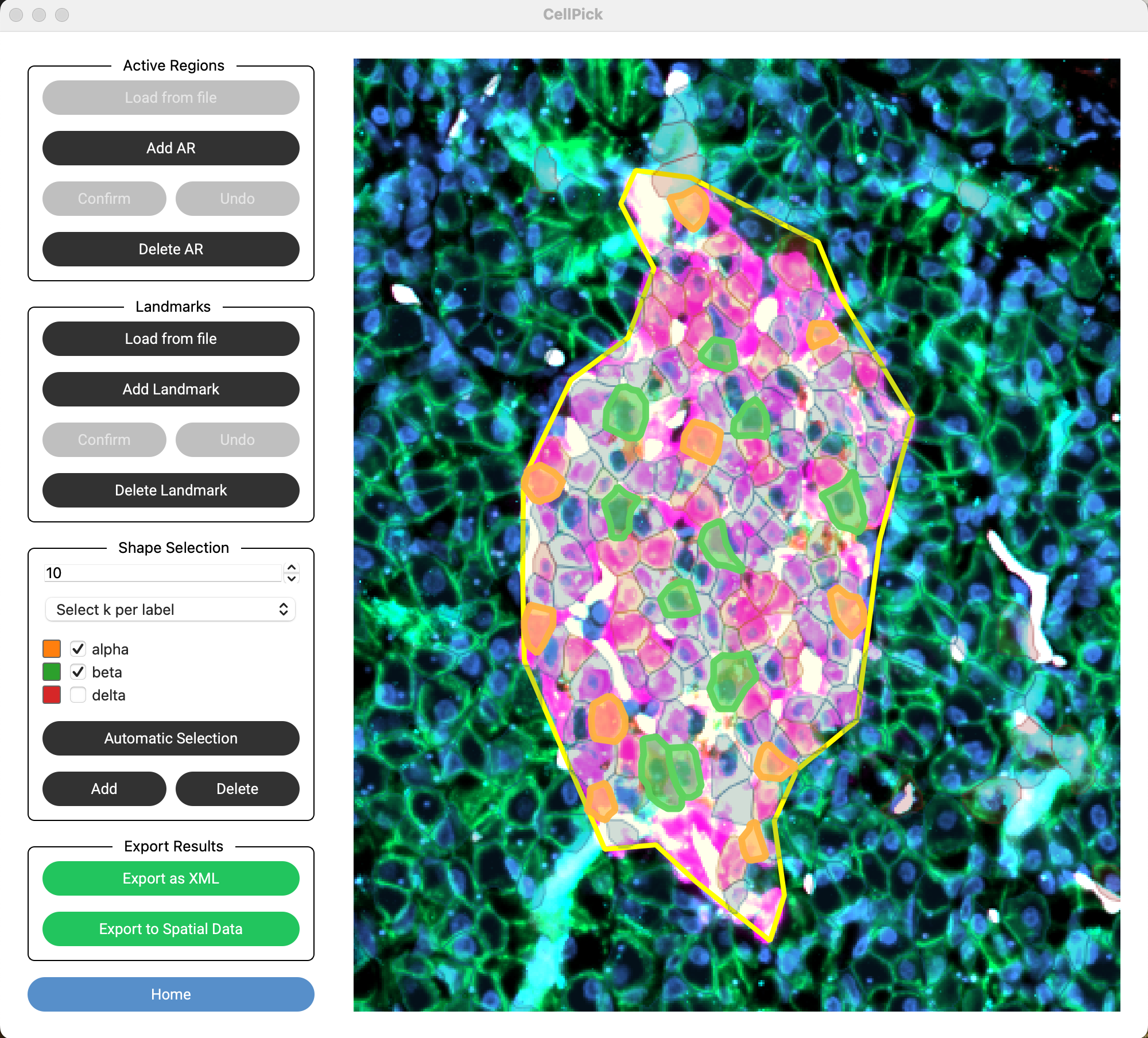
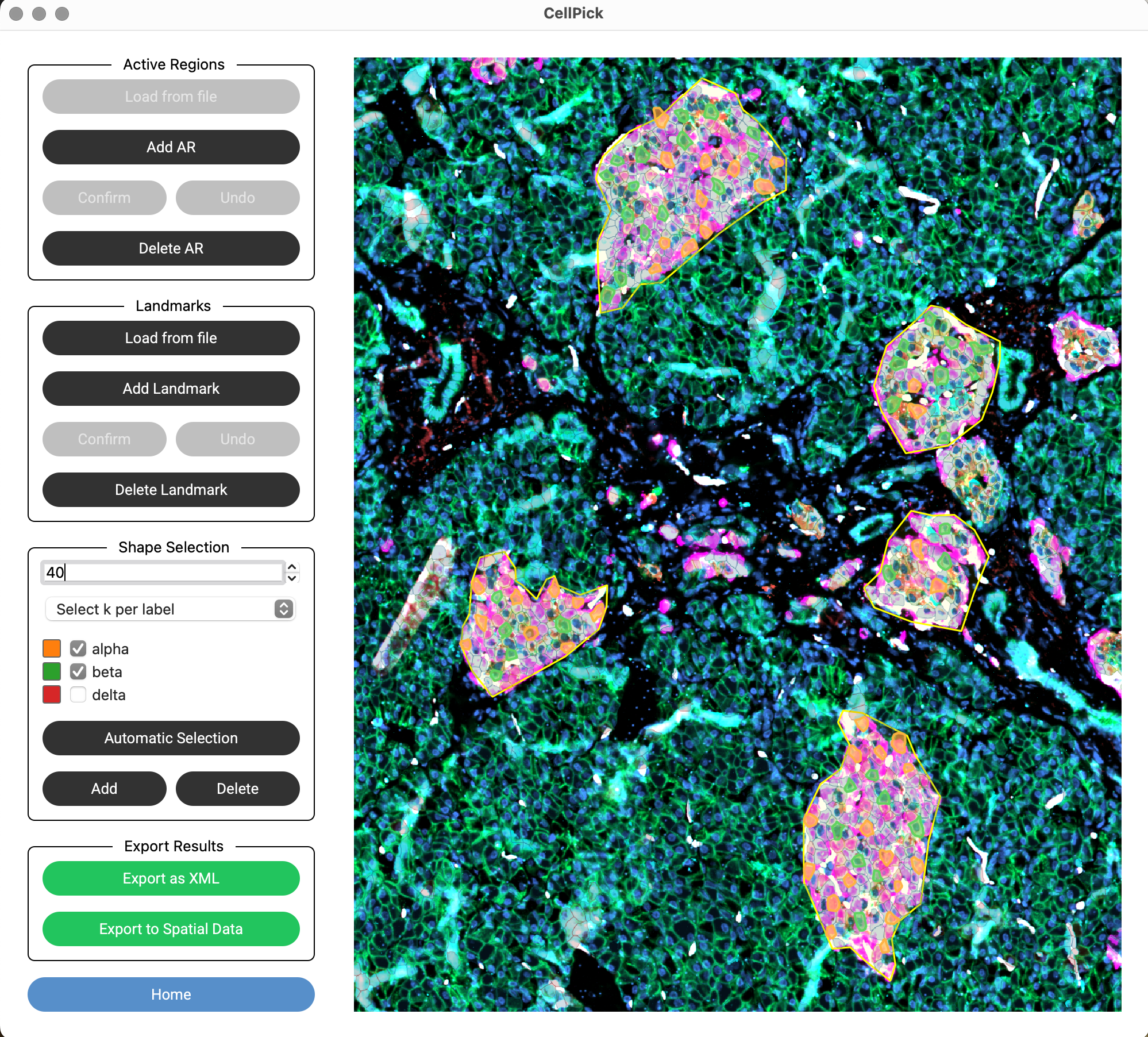
Select k per label: (Requires loaded labels) Selects k cells from each cell type label. Only visible when labels are loaded.
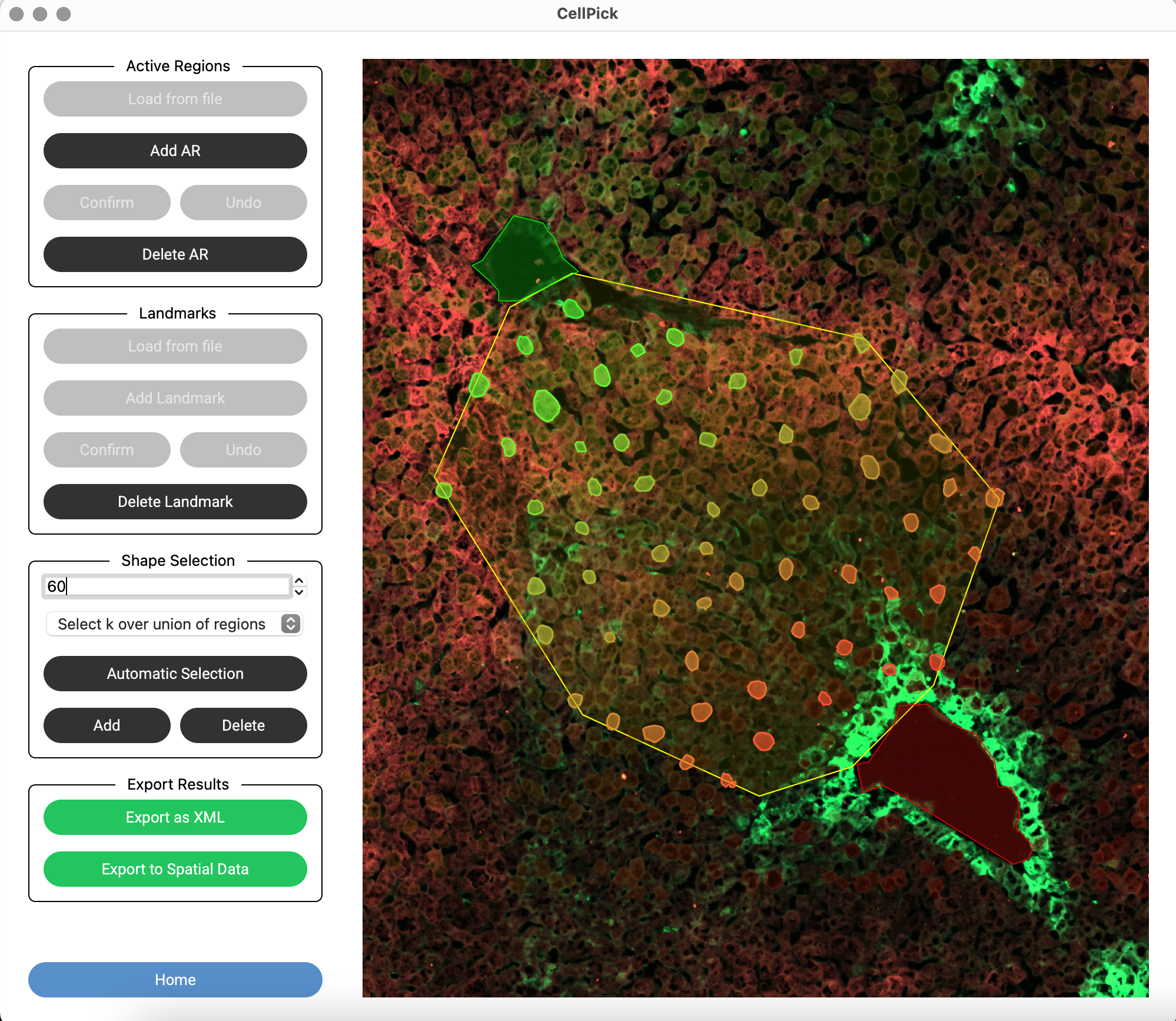
Automatic Selection#
Enter the desired number of cells in the k spinner
Select a method from the dropdown
If using “Select k per label”, check/uncheck labels to include/exclude
Click “Automatic Selection”
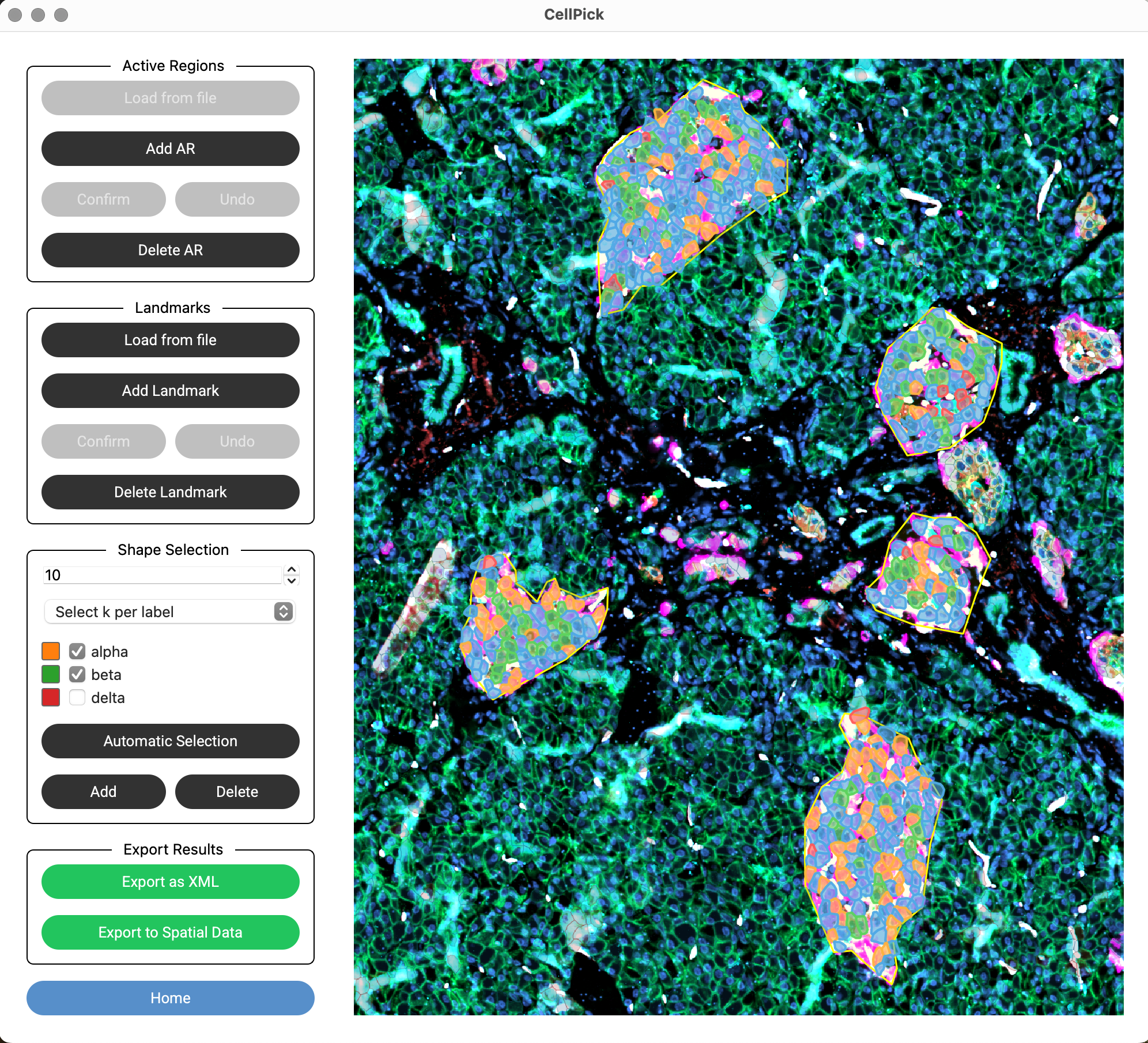
Selected cells will be highlighted in the image
Manual Editing#
After automatic selection, you can manually refine your selection:
Add Shapes: Click “Add”, then right-click on a cell to add it to the selection
Remove Shapes: Click “Delete”, then right-click on a selected cell to remove it
Warning
CellPick will warn you if selected shapes are contiguous (touching). For laser microdissection, non-contiguous cells are typically required.